Enter your first name in the “First Name” field at the top of the page.
Enter your last name in the “Last Name” box on the right.
Select your date of birth from the drop down menu.
Enter your email in the “Email Address” field.
Confirm your email by typing it one more time in the “Confirm Email Address” box.
Type in your cell phone number.
Enter your zip code.
Type in the password that you want to use to access your account in the “Password” box. (Keep in mind that password is case sensitive, it must be at least 10 characters long, and you have to use a combination of both letters and numbers.
Confirm your password by typing it one more time in the “Confirm Password” box.
And click “Submit”.
After signing up you can access your account via the Samsung Account login page, where you’ll be able to use apps and services only available to registered customers, receive exclusive news and offers, manage, update, and edit your account online, plus a lot more.
Instagram is a mobile app that you can download on iOS and Android phones and tablets as well as Windows Phone 8 and later. Keep in mind that you can only share photos and videos from the mobile app.
To create an Instagram account from the app:
Download the Instagram app for iOS from the App Store, Android from Google Play Store or Windows Phone from the Windows Phone Store.
Once the app is installed, tap to open it.
Tap Sign Up, then enter your email address and tap Next or tap Log in with Facebook to sign up with your Facebook account.
If you register with email, create a username and password, fill out your profile info and then tapDone. If you register with Facebook, you'll be prompted to log into your Facebook account if you're currently logged out.
Enter your email address, create a username and password or click Log in with Facebook to sign up with your Facebook account.
If you register with an email, click Sign up. If you register with Facebook, you'll be prompted to log into your Facebook account if you're currently logged out.
Keep in mind, if you sign up with email, make sure you enter your email address correctly and you choose an email address that only you can access. If you log out and forget your password, you'll need access to your email to get back into your Instagram account. Learn more about keeping your account secure.
How to update my profile information (ex: name, username, email)?
To update your profile information, including your username and the email address associated with your account:
Go to your profile by tapping
Tap Edit Profile
Type in your new name, username, website, bio or private information, then tap Done or Save in the top right
What can I do if a username is already claimed but seems inactive?
If a username you want is being used by an account that seems inactive, you should consider choosing an available version of the username for your use on Instagram. We suggest adding periods, numbers, underscores, or abbreviations to help you come up with a great available username.
If the username you want isn't currently associated with any account, it's available for registration. If you'd like to change the current username on your account, you can edit your profile.
What's Instagram's inactive username policy?
We encourage people to actively log in and use Instagram once they create an account. To keep your account active, be sure to log in and share photos, as well as like and comment on photos. Accounts may be permanently removed due to prolonged inactivity, so please use your account once you sign up!
What if an account is using my registered trademark as its username?
Trademark violations may involve using a company or business name, logo or other trademark-protected materials in a manner that may mislead or confuse others with regard to its brand or business affiliation.
What is not a violation?
Using another's trademark in a way that has nothing to do with the product or service for which the trademark was granted is not a violation of Instagram's trademark policy. Note that Instagram usernames are provided on a first-come, first-served basis and may not be reserved.
How do I report a trademark violation?
Learn more about other types of trademark violations or submit a report of a username violating your trademark.
I received an email that I created a new Instagram account, but I didn’t sign up for a new account.
Most likely, someone tried to sign up for an Instagram account using your email address by mistake. To remove your email from the account:
If you have an Instagram account, log out. Before logging out, make sure the you have access to the email address currently associated with your account. Learn how to update your email address. If you don't have an Instagram account, skip to step 2.
Click let us know at the bottom of the Welcome to Instagram email to let us know this wasn't you.
You should then be able to use this email address to sign up for an Instagram account or add it to your existing account.
If you're still having issues with your email or phone number, let us know
I can't sign up for an account because an account with my email address or phone number already exists.
If you signed up for Instagram with your email address or phone number but you can't remember your password, you can reset your password and log into your account.
If you've typed your email address or phone number correctly and see a message that an account with your email address or phone number already exists, let us know.
Keep in mind that an email address can only be associated with one Instagram account.
LinkedIn’s personal and business pages are so different that each one needs its own section. We’ve broken them down separately below.
LinkedIn Personal Profile
Bio
On LinkedIn, your bio is at the core of effectively using the social network. LinkedIn is a professional social network where you list your experience and expertise in order to attract potential employers, clients or connections. Being that your profile is so essential for this purpose, LinkedIn has made their profiles very substantive. In fact, there are no fewer than 21 sections to your LinkedIn profile. While almost all of these should be filled out, we’ve ranked them roughly in their order of importance and added a line about each one:
Name – First and last
Headline – Will default to your current job title, but you can customize for more punch and to include key terms for search
Summary – LinkedIn describes it as info “about your mission, accomplishments, and goals.”
Contact Info – Email, phone, IM, address, Twitter handle and websites.
Experience – Professional positions and experience, both jobs and volunteer work.
Recommendations – Professional recommendations displayed on your profile are a major asset while on the job hunt.
Skills & Endorsements – The skills you list should represent your real strengths, since your contacts will ideally be endorsing you for them. Spend time to make this section very representative of you and your abilities.
Industry – Choose from their drop-down menu
Location – Important to let people know where you work
Education – Where you went to school and what you studied
Certifications – Do you have a specific certification that would benefit your job?
Publications – Specifically relevant for marketers, writers and researchers
Projects – Have you worked on a noteworthy project that would impress connections or employers?
Languages – Being bilingual or trilingual can be a major career asset. Share your language skills.
Volunteer Experience & Causes – Organizations you support, causes you care about, and the types of volunteer opportunities you’re looking for.
Additional Information – If it isn’t professional, keep it out of this section. Your marital status isn’t particularly relevant on LinkedIn.
Honors & Awards – Keep these to large, noteworthy awards. Not your ‘most improved softball player’ trophy.
Organizations – Be careful of noting political organizations. They could influence hiring.
Courses – Only fill this out if your school courses are very relevant to your desired field.
Patents – Not very relevant for most of us, but a select few can benefit from this section
Test Scores – Generally, skip this. Unless you got a perfect score on the bar exam.
As a general rule, your LinkedIn profile should be strictly professional. Avoid the humorous or quirky in favor of the straightforward. LinkedIn also favors profiles that are 100% complete, so put in the effort to check off all the boxes in the creation of your profile.
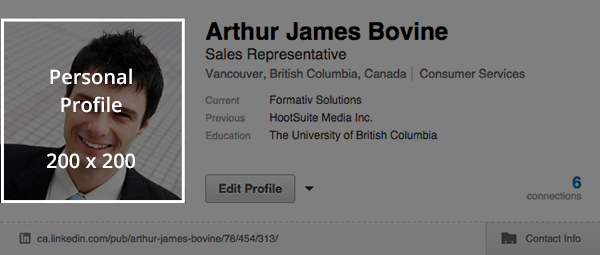
LinkedIn profile photos should be square headshots. This is a standard that exists for a reason. You can also choose a custom background photo for your profile. Since it is LinkedIn, we recommend choosing a photo with some professional context, or something that speaks to your career.
Extras
Last year LinkedIn made its publishing platform open to all users, a move that turned the social network into a veritable blogging platform. When you publish a post on LinkedIn, it will appear high up on your profile. This important real estate is a major incentive to start writing posts for your LinkedIn audience. It’s an easy way to extend your reach and impress profile visitors. Think of it like your own mini thought leadership program.
LinkedIn Company Page
Bio
LinkedIn Company Pages require a much smaller set of information than LinkedIn profiles.
Company name
Company size
Type
Website
Main industry
Operating status
Year founded
And location
These fields are all either self-explanatory or are chosen from a dropdown menu. This leaves only three sections that require effort to fill out.
First, your company description should describe who you are and what you do, and appeal to both prospects and prospective hires. Include links to your website and careers page in this section.
Next is your company specialties. In this section list key terms that someone who uses your product or service might search for. There are several slots open, so you can get very specific with these specialties.
Finally, there is a featured groups section which is meant for LinkedIn groups that you participate actively in or are an administrator for. LinkedIn groups are a great way to make connections on the social network, so we recommend actively participating in them. If you see a void on a particular topic, starting a group is a great way for your company to be perceived as an authority or leader on that subject.
Images
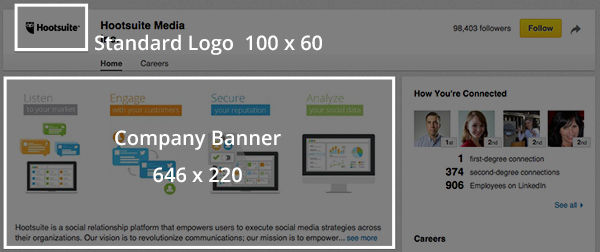
Your LinkedIn Business Page has three main images you should take time to optimize.
Suggested LinkedIn Company Page image dimensions
LinkedIn standard logo: 100×60 pixels
LinkedIn banner image: 646×220
LinkedIn square logo: 50×50
The first is your standard logo, the small icon that appears in a box on the top right of your page. This image will be reused in LinkedIn’s “Companies You Want to Follow” section, which is a great reason to make this image stand out. Make it clear and appealing, since it will be the first impression many LinkedIn users have of your brand.
Next is your banner image. This appears on your business page under your logo and is the LinkedIn equivalent of a cover image. It’s a bigger, landscape image and should be used to capture people’s attention, while telling your company’s story.
Finally, your business page will need a square logo. It will be used when you post updates and when users search for you, so make it clickable.
Extras
LinkedIn is now an incredibly important part of hiring for many businesses. With that in mind, the social network offers an opportunity to highlight career opportunities on a separate tab within your Company Page. While not immediately visible, this tab would appear on your profile and is worth completing.


 to open it.