Showing posts with label Yahoo. Show all posts

Sunday, July 10, 2016

Remove Geni.com Account Completely

 Remove Geni.com Account Completely
 Image result for Remove Geni.com Account Completely

Geni.com this is a  Families, genealogy created 16 January 2007

 How to Remove Geni.com Account Completely
Please login to your Geni account and delete any of the information you would like removed from the site, including any photos or profile information you added.  Once you have removed the information you do not want on the tree, simply select 'Account Settings' and 'Close Account' to deactivate your account on Geni.
Otherwise, to simply deactivate your account, you can find the close account page in your settings: Close Account
Please note that if you are looking to cancel your Pro subscription, you can do that from your Pro settings page without closing your basic Geni account: Geni Pro Account

Saturday, April 23, 2016

Remove yahoo account from android

Remove yahoo account from android
Image result for remove yahoo account from androidClick on the account you want to remove, and at the bottom you should see an option to "remove account." To remove a Gmail account it works a little differently. Go to your phone's main settings app, then go to accounts & sync. Tap on the account you wish to delete, and then press menu then remove account.

Saturday, February 6, 2016

How to remove Yahoo Account

Delete Yahoo Account

 Image result for delete yahoo account
Do you want to delete your yahoo account with all of its products?
It is easy to delete yahoo account because there is direct link which when clicked, will lead you to land on the official yahoo deletion page.
Keep in mind that once you delete your yahoo account, you will automatically delete the whole package which contains the following yahoo services:
  • Yahoo answers. (Your questions and answers will remain).
  • Flickr.
  • Yahoo Mail.
  • Yahoo notepad.
  • My Yahoo.
  • Any other yahoo program that needs your Yahoo ID and password.
Now to delete your yahoo account, click the following link:

Steps - How to Delete Yahoo Email Account

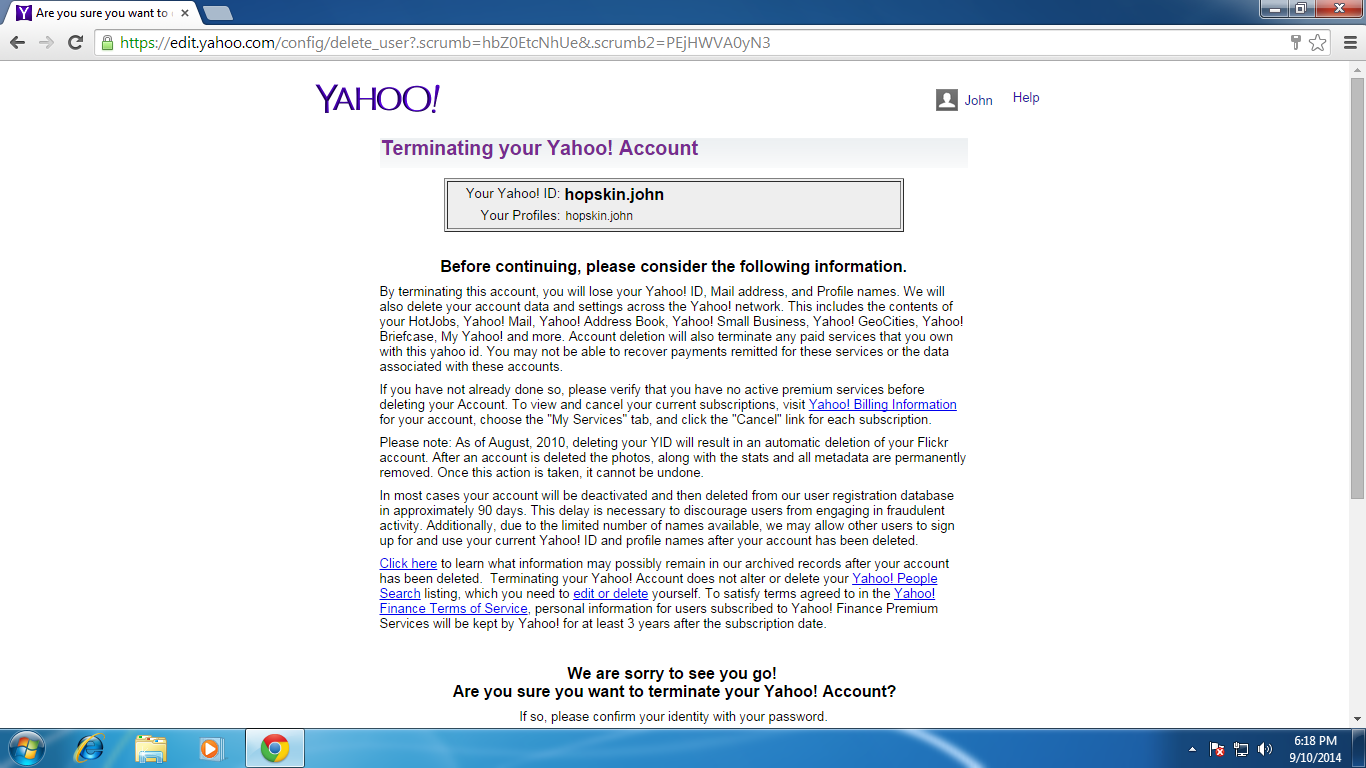
1 Open your browser and input "edit.yahoo.com/config/delete_user" at address bar to visit Yahoo Mail. Sign up to your email account as usual.
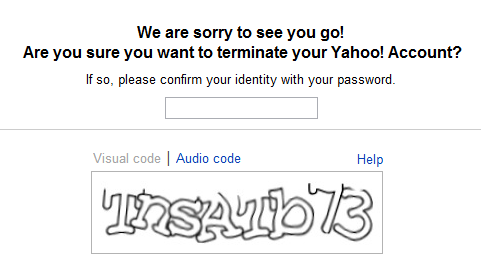
2 Then the webpage will jump to "Terminating you Yahoo! Account" page. Check if your Yahoo ID is correct and read the following instruction on the consequence of deleting account. If you are sure to continue, then pull down to the end of the page. You need to input your password again and fill the verification code to confirm your behavior. Then click on the button "Terminating this Account" under the word "YES".
3 The deletion finished now. You'll see the page which will tell you "Your account has been deactivated and scheduled for deletion", which means that though you can't enter to this account, the files in the account will be deleted in about 3 months for the purpose of reducing users' fraudulent activity.

You will be asked to confirm your action, now scroll down to the bottom of the page, confirm that you are account owner by entering your password, and fill the text box with the given CAPTCHA  and  click the button YES (Terminate My Account)
Delete Yahoo Account
Warning:
Once a yahoo account is deleted it and its contents cannot be recovered.

Sunday, January 31, 2016

How to remove Deviantart account

Remove deviantart account

 Image result for How to remove Deviantart account
 Accounts cannot be deleted; however, they can be deactivated from this page. Once your account is deactivated the following occurs:

Your profile page is wiped clean.
All of your deviations and journals are pulled from public view and after 30 days they will be scheduled for deletion from the servers.
All of your previous comments will show your username greyed out with a line through it.
You will only be able to login to view previous shop purchase activity.
You will no longer be able to participate in the DeviantArt community.
-----------

Deactivated accounts may be reactivated after 48 hours have passed since deactivation up until 30 days after the original deactivation. You can access the reactivation feature by going to your Profile Page.

Please note, once your account passes the 30 day self-reactivation period it cannot be reactivated.

Please also be aware that if you are deactivating to free up your email you will have to wait 30 days before you can reuse that same email address. If you require another account during this time please consider using another email address or changing the email address on file for the account you're deactivating. 

OR
DeviantArt is the social network designed to connect artists online.
Unfortunately user accounts at deviantart can not be deleted but rather they can be deactivated, this means that, once you deactivate your account, it will be deleted forever after 30 days of inactivity.
To deactivate your deviantArt account, login to your account dashboard and then click the deactivation link as explained in the following help page:
Then follow the instructions to confirm your account and you will be deactivated.

Thursday, January 28, 2016

Remove Instagram Account

Remove Instagram Account

 Image result for How to Delete Instagram Account
If you want to delete your Instagram account, follow the following steps to achieve this:
Delete Instagram Account
  1. Sign in to your Instagram account by entering your username and password and click Log in button.
  2. Locate your username on the top right-hand corner of your browser, and click.
  3. From the drop down links, click “Edit Profile
  4. Locate the link on the page towards the bottom right edge of the settings area, that states “I’d like to delete my account“. Click the link.
  5. Locate and click the drop-down box for the reason why you’d like to delete the account.
  6. Click the reason you want, to select your reason. Most people select “Other“, but if a better reason is already listed, click that link instead.
  7. Click into the “To continue, please re-enter your password” box then enter your account password.
  8. Click the box stating “Permanently delete my account“.
 Or
 Deleting Instagram
A few days ago, I decided that I was going to get rid of my Instagram account, and that’s what I did. I felt that it was just another app that served as a distraction to my daily workflow, so it had to go. Even though I had over 2,000 followers, I was ready to make this change.
Have you ever considered deleting your account? Although deleting an IG account is easy, it’s not as straightforward as just opening the app, going to your account details, and tapping delete. In this post, I’ll show you how to delete your Instagram account.

How to delete your Instagram account

Understand that deleting your IG account is permanent and cannot be undone. Proceed with caution.
Step 1: In a web browser, navigate to the Delete Your Account page. You’ll need to login with your Instagram username and password if you’re not already logged in.

Step 2: Select a reason why you’re deleting your account and verify your password. You will not see the delete button until you choose a reason and re-enter your password.

Step 3: Once you meet the aforementioned requirements, click the Permanently delete my account button to delete your Instagram account.